Video Tutorial: Creating an Audiobook with Jimlet TTS Converter
In this tutorial, you’ll see how to turn multiple text chapters into a complete audiobook using Jimlet TTS Converter on Windows. I walk through loading chapter files, adjusting voice and quality settings, and converting everything into MP3 audio in one go — using a real example based on The Wonderful Wizard of Oz by L. Frank Baum.
Each chapter is saved as a separate MP3 file, making it easy to organize your audiobook or copy it to any device.
Download the Audiobook Created in This Tutorial
Below is the finished audiobook produced in the video.
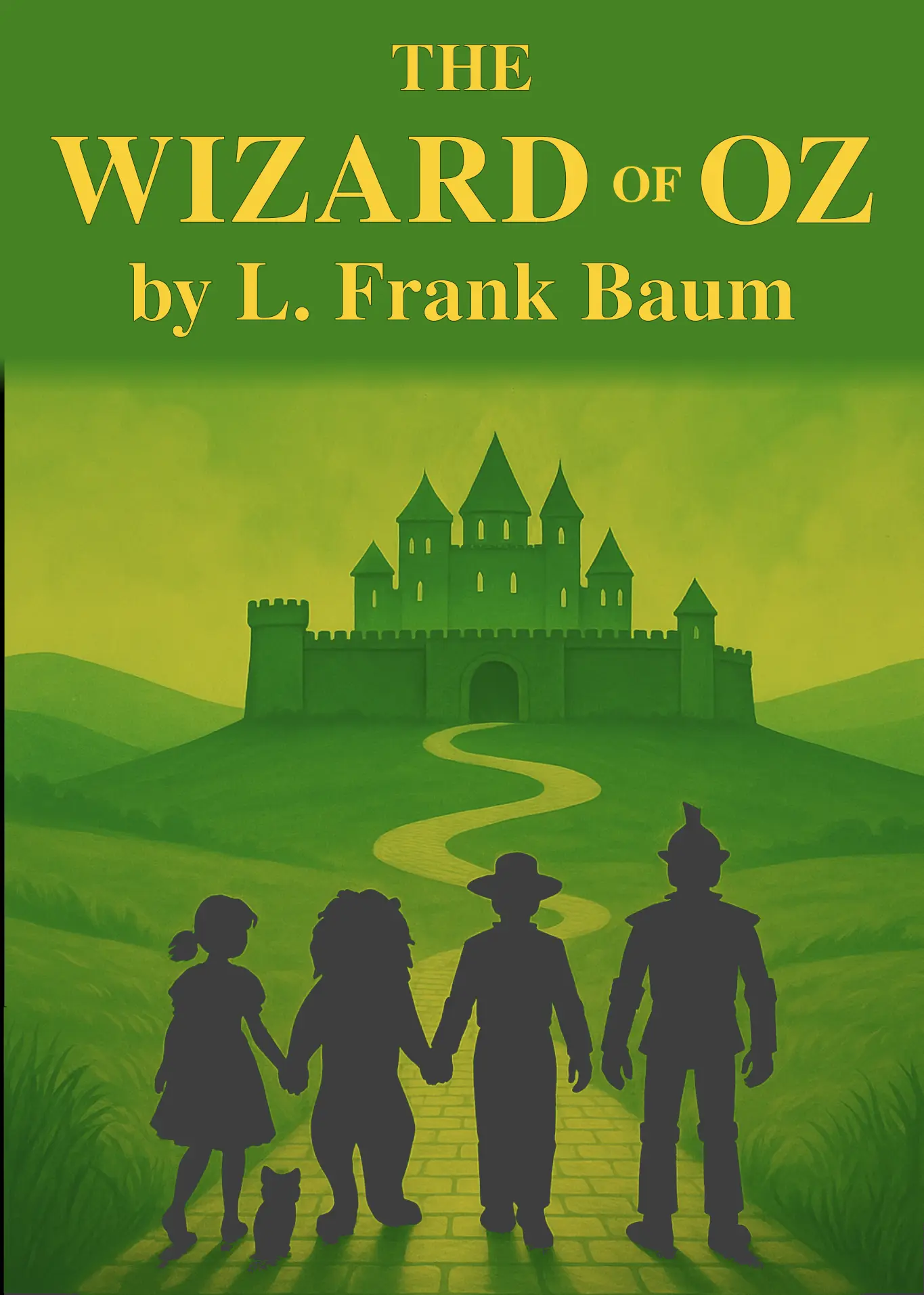
Download Sample Audiobook (103 Mb)
Download includes
- Text chapter files
- MP3 audio files (one per chapter)
- Book cover artwork
This is an adapted, modernized version of the original book, prepared for contemporary readers while preserving the storyline and characters.
You can listen to it directly, explore the file structure, or use it as a reference for creating your own audiobooks with Jimlet.
Tutorial Script
Today I’m going to show you how to create an audiobook using the Jimlet text-to-speech converter.
Here we are in my Downloads folder. This is where I placed the converter and extracted it. We have the same folders and files as before. Jimlet.exe is the main application. I also added a folder containing the Wizard of Oz book.
As you can see, we start with Chapter 1, “The Tornado,” and it continues through all chapters, up to Chapter 24, which ends with “Oh Aunt Em, I am so glad to be back home again,” with everything in between.
Now I’ll open the main folder and click jimlet.exe.
The main window opens. I click “Open some files,” go into the Wizard of Oz folder, select all chapters, and add them to the main window. Now everything is listed here.
Next, I switch to the Settings tab.
Quality is set to 5. Female Voice 1. Language is English. Output format is MP3.
I’ll leave all other settings as they are.
Now we’re ready. I click “Convert.”
The conversion has started. You can see the progress indicator, and the files are being processed.
While this runs, let me show you my hardware.
Actually — one moment — I’ll start a timer so we can see how long the full conversion takes.
Okay.
The first chapter is already finished, so let’s preview it. Sounds good.
Now, about this machine.
My CPU is an Intel i7, 11th generation. My GPU is Intel Iris Xe — built-in graphics. I don’t have a dedicated NVIDIA card.
And as you can see, the conversion is still running.
I’ll skip ahead and come back closer to the end.
Scrolling down — there are 24 chapters total, and right now we’re on Chapter 3.
Okay, now we’re getting close. Three chapters left.
Let’s preview something from the middle — for example, Chapter 12: “The Search of the Wicked Witch.”
Looks good.
And now we’re finished. Let’s open the very last file — Chapter 24.
Everything is done.
Now let’s check the timer.
It took about 16 minutes to convert the entire book.
We now have a complete audiobook with all 24 chapters. Each chapter is several minutes long. Some are up to about 18 minutes, so this is quite a lot of audio content.
And that’s it.
We’ve created our audiobook.
All of this conversion happens locally on your computer.
You can now copy these audio files to your phone, tablet, or any audiobook player, or keep them on your PC and listen to them directly. Each chapter is saved as a separate MP3 file, so it’s easy to organize, rename, or combine them if you’d like.